Your bar & what you can make
A recipe app that ignores what you actually own is a wishlist. Tell Riffed what's on your shelves and every drink in the catalog gets scored against them — so "what can I make tonight?" has a real answer.
Stocking it
Your bar lives on your profile. Add bottles by searching or browsing the catalog — or point the camera at your shelf and let the scanner read the labels. You can go as general ("gin", "sweet vermouth") or as specific (the exact bottle) as you like; both work, for reasons below.
The three badges
Every drink is scored against your bar into one of three tiers:
Make now — You have everything. Pour away.
Riff ready — One sensible substitution away — a bottle you own can cover the gap.
1–2 away — One bottle short (two on bigger builds), with nothing on your shelf close enough to stand in.
The middle tier is the interesting one: its badge carries the riff icon because that substitution is a riff — tap through and the app shows you which of your bottles covers the gap.
Two rules with opinions behind them:
- Garnishes never gate what you can make. A missing orange peel should not hide a Negroni from you. Garnishes are best-effort at home, and the badges treat them that way.
- The specific covers the general. A recipe that calls for "gin" is Ready if you own Tanqueray — owning a particular bottle of exactly what's asked always counts. (It doesn't work loosely in reverse: sloe gin is not gin, and the scoring knows it.)
Where you see it
The Bar screen is the exhaustive view: the three counts — make now, riff ready, 1–2 away — over a bar proportioned the same way, then your inventory, then every drink listed by tier. Search has a "From your bar" toggle that narrows results to what your bar supports, and Home keeps it curated: badges ride every card, and the "From your bar" row leads with what you can actually pour.
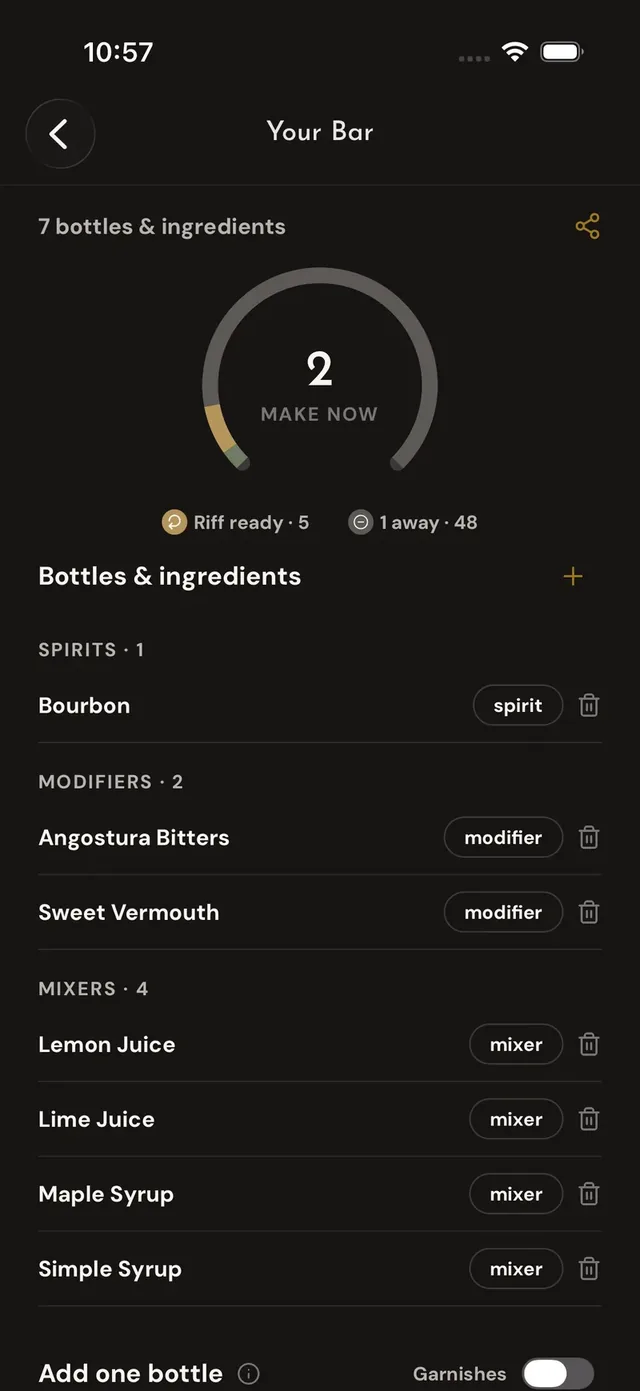
The Bar screen
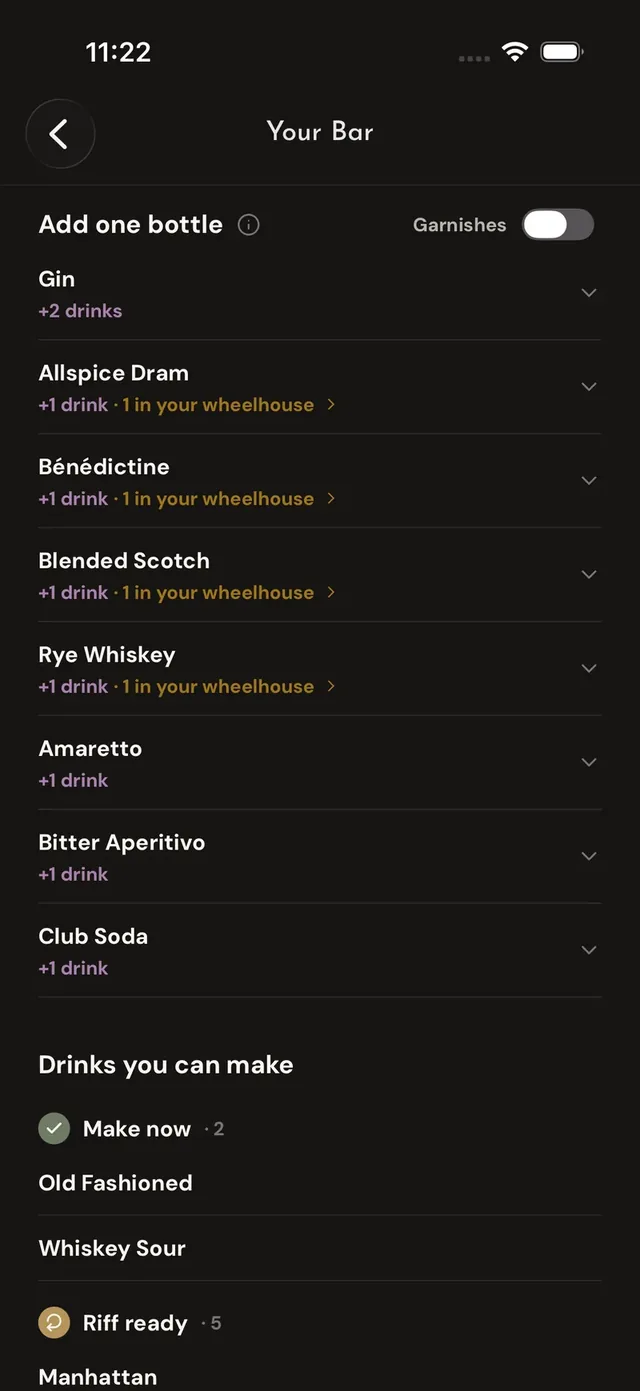
Add one bottle
Add one bottle
Scroll past your inventory and the Bar screen answers the standing question at the liquor store: "Add one bottle" ranks bottles by how many new drinks each one unlocks from where you stand today, and notes how many of those also land "in your wheelhouse" — a match for your palate, not just your shelf. (If you want garnishes suggested too — the "this completes three drinks" kind — there's a Garnishes switch right on that section; it never touches the badges.)
You can also point the badges at someone else's shelves: browse a friend's bar or a shared bar and every badge re-scores against theirs.